Set up a campaign in minutes.
Choose readable short slugs. Add titles and notes. Use consistent Campaign/Group dropdowns, add several links together, or preview a CSV/XLSX import.

Part of the SelfServ Labs family
You add your links. You generate your reports.
Track your campaigns in one self-service workspace, with support when you need it.
Five demo links · Working tracking for 24 hours · Demo exports disabled
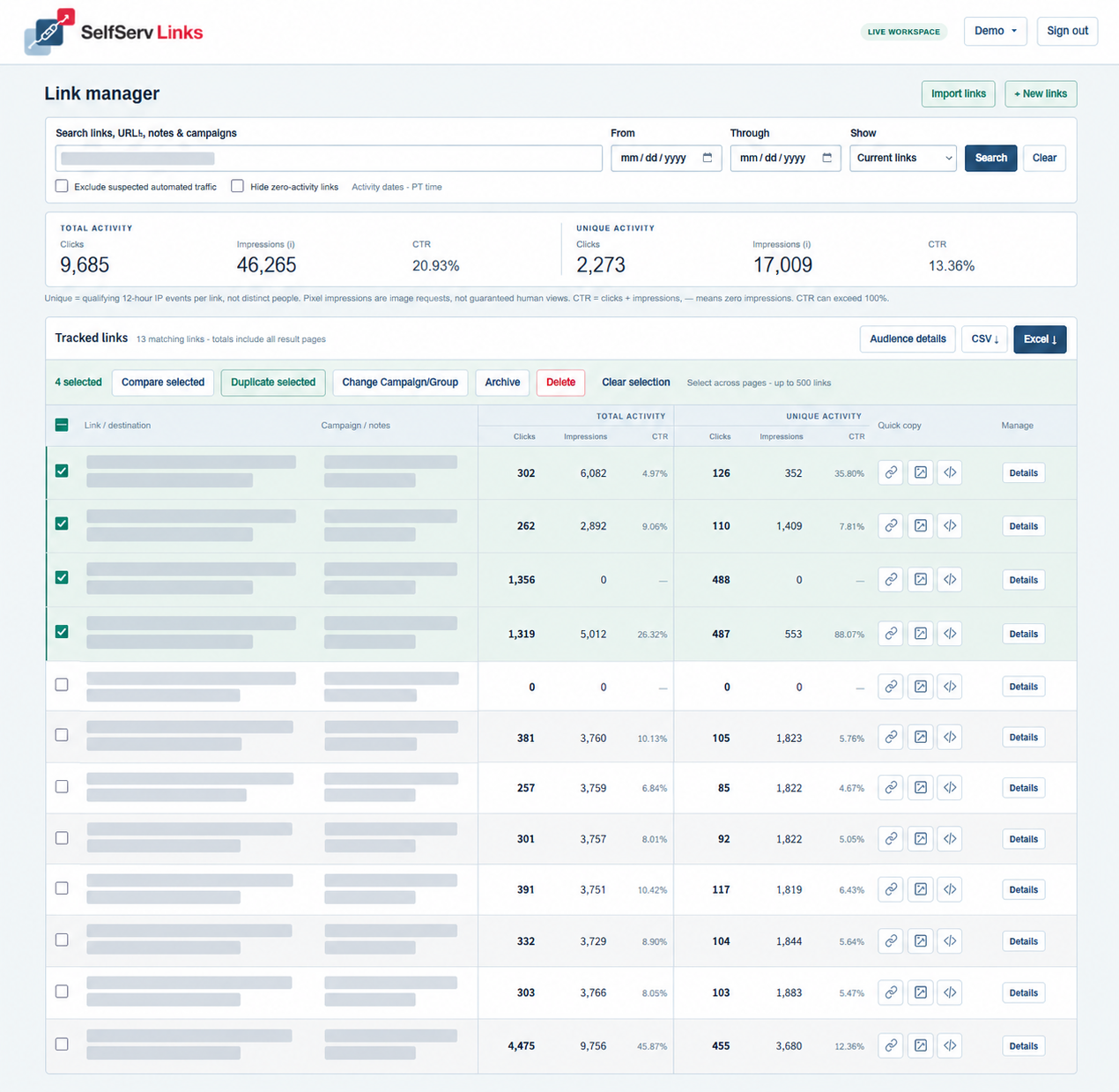
Anonymized interface mockup. Private link, destination, campaign and note details are hidden.
From first link to final report
Choose readable short slugs. Add titles and notes. Use consistent Campaign/Group dropdowns, add several links together, or preview a CSV/XLSX import.
Update destinations without losing history. Rename with working old aliases. Duplicate an existing link into an editable copy with a new pixel and fresh analytics.
See total and qualifying 12-hour unique counts, total and unique CTR, and available country, device, browser and referrer details.
Combine text or wildcard search with PT activity dates. Keep zero-activity links visible. Compare checked links and refresh their results in place.
Download CSV or compact, branded Excel with a summary row per link. Export all search results or a selected comparison, with the same date and traffic filters.
Check links across result pages to organize, archive, delete or duplicate. Copy the short URL, pixel URL or full image embed directly from the dashboard.
A straightforward workflow
Use your existing webpage, CMS or email editor. Tracking pixels work where externally hosted images or HTML embeds are supported.
A look inside SelfServ Links
Add and manage your own links, explore audience activity, and generate reports whenever you need them. Support is available along the way.
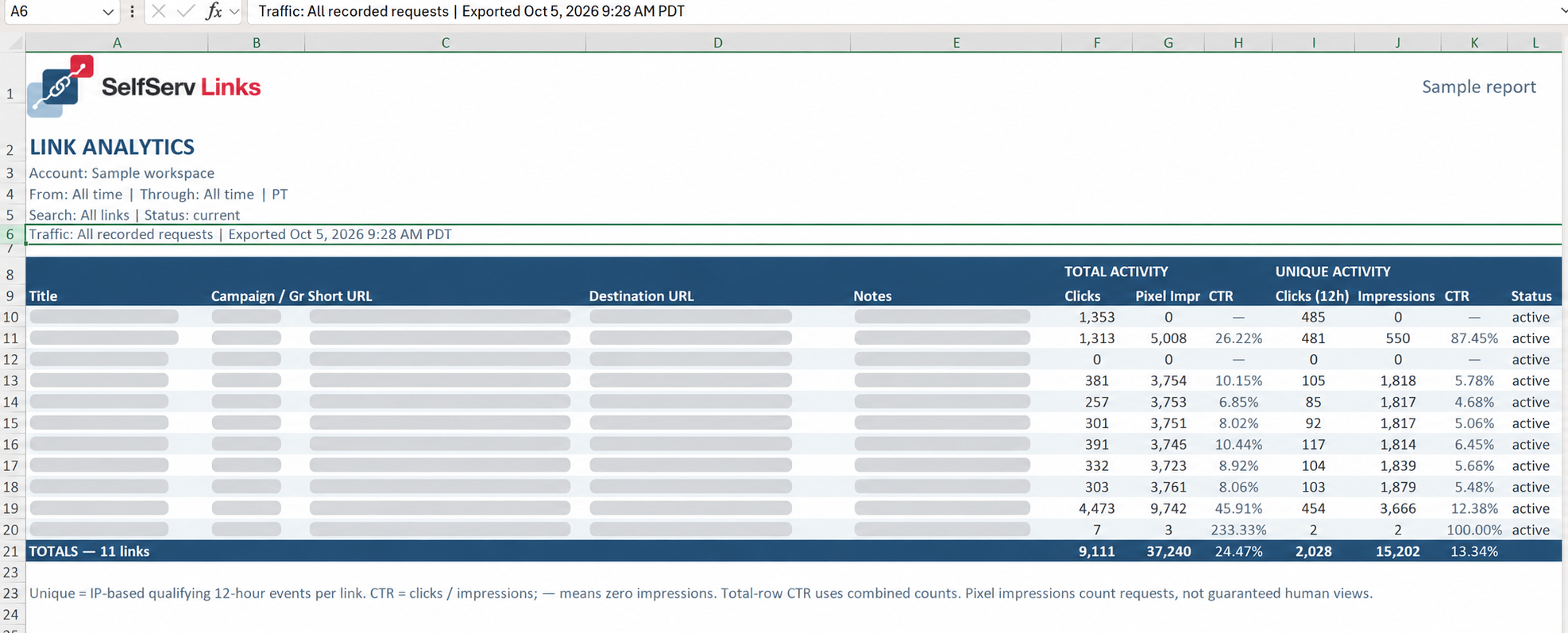
Download compact, styled Excel and CSV reports for a search or selected links. Private identifying fields are hidden in this report mockup.
Enlarge report ↗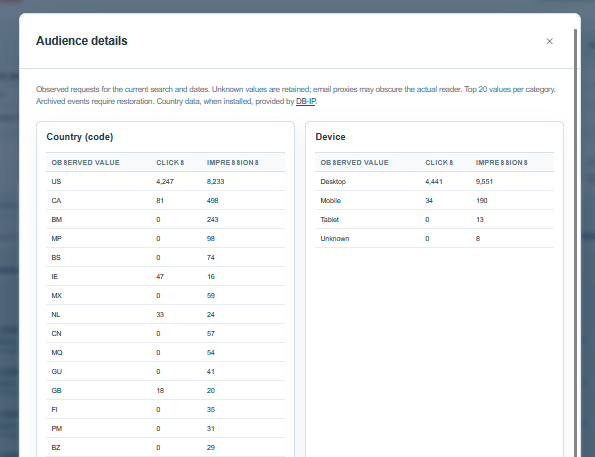
See available country, device, browser and referrer breakdowns. These describe recorded requests; privacy services can obscure the reader.
Enlarge audience details ↗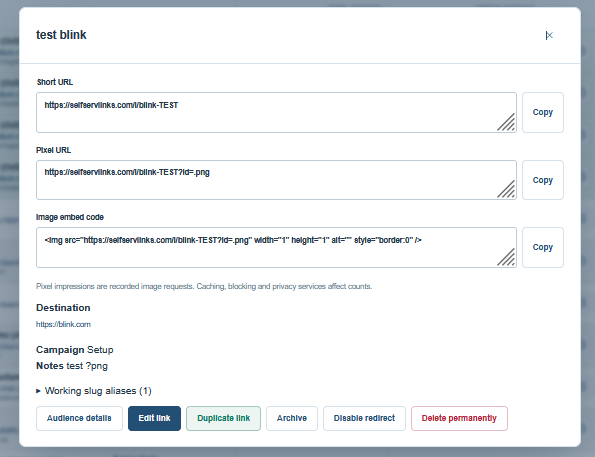
Copy your short URL or pixel code, edit a destination, or duplicate a link for your next placement. Each copy gets independent analytics.
Enlarge link details ↗Illustrative previews. Private report fields are anonymized; the link-details example uses a test link. Screenshot labels may reflect an earlier interface version.
One plan. Self-service control.
Create links when you need them. Make changes yourself. Return to the same workspace for tracking, comparisons and exports.
Order online to get started. Access is activated by our team. Contact us to arrange a paid expanded plan.
$500 / month
200 new links per calendar month (PT)
Warning at 200; new creation pauses at 210. Existing links and reporting continue. Deleting a current-month link returns its slot. No rollover. Expanded plans are arranged with support.
Questions, answered
One customer workspace with self-service link creation, tracking pixels, analytics, campaign organization, bulk tools, and CSV/styled Excel reporting. The plan includes 200 new links per calendar month in PT, plus 10 extra creation slots. Account activation is handled by our team.
At 200, the dashboard warns you and allows 10 additional links—5% extra. At 210, new creation pauses. Existing redirects, tracking, editing and reporting continue. Contact support@SelfServLabs.com to arrange and pay for an expanded plan. No automatic upgrade or charge is made.
Creating links manually, importing them, and saving duplicates each use one slot per new link. Editing or renaming an existing link does not. The allowance resets on the first day of each calendar month in PT, with no rollover. Imports and multi-link batches must fit within the remaining slots.
Yes, if the link was created in the current calendar month. Deleting an older link does not increase this month’s allowance. Deleted short URLs stop redirecting and pixels stop recording. Statistics remain stored internally but are not available in your reports or exports. Deleted links cannot be restored through the dashboard, and their slugs stay reserved. The demo’s five-link lifetime limit does not return credits.
Each link has a hosted, transparent 1×1 PNG. Copy the pixel URL or full image embed code and manually place it in your email or webpage. Its URL follows your short URL with ?id=.png. Keep that hosted URL: downloading the image and uploading it elsewhere bypasses tracking. Your publishing service must support externally hosted images or HTML image embeds.
No. Impressions count recorded image requests, not guaranteed human views. Image blocking, caching, email privacy proxies, security scanners and bots affect the counts. Country, device, browser and referrer describe the observed request and may not identify the actual reader. Missing information appears as Unknown.
Uniqueness is tracked separately for clicks and impressions, per link and IP, using qualifying 12-hour events. For example, a qualifying event at 8 AM counts; a repeat at 10 AM does not add a unique count; an event at or after 8 PM can count again. Repeat events do not restart that clock. Changing report dates does not reset it. Monthly uniques are not distinct people. Shared IPs and proxies affect these estimates.
Total CTR is total clicks divided by total pixel impressions. Unique CTR uses unique clicks divided by unique pixel impressions. Reports show percentages; an em dash means there were zero impressions. Combined CTR uses combined counts, not an average of row percentages. Because clicks and pixels are recorded independently, CTR may exceed 100% and is not a guaranteed person-level conversion rate.
Yes. Open Details → Edit link to change the title, destination URL, notes, Campaign/Group or slug without losing analytics. When a slug changes, old and new short URLs remain working aliases under the same link. Slugs preserve display capitalization but routing and uniqueness are case-insensitive. Use 3–64 letters, numbers, hyphens or underscores.
Yes. Duplicate from Details or select up to 20 links and choose Duplicate selected. Review the copied fields and edit the suggested _1, _2 or later slug before saving. Each copy starts with its own pixel and zero analytics. CSV and XLSX imports support up to 500 rows and 5 MB per file, subject to your remaining allowance. Templates and a preview identify errors before creation.
Manage your workspace’s Campaign/Group dropdown choices from the account menu. Search titles, original URLs, short URLs, notes and campaigns. Plain text matches anywhere; * supports starts-with, ends-with and contains searches. Date filters use tracked activity, not link creation dates. Matching zero-activity links stay visible by default. Check rows to compare them, change their group, archive, delete or duplicate.
CSV and styled Excel include one summary row per matching link, four activity counts and total/unique CTR. Exports follow your search, activity dates and automated-traffic filter, including zero-activity links unless hidden. Compare selected provides selected-link exports and a Refresh button. Dates use PT; timestamp labels use PST or PDT as appropriate. Older archived detail may require a support restore.
Raw totals include recorded automated requests. Select Exclude suspected automated traffic for a filtered report and export. Detection is an estimate, not proof of human activity. Audience details show available country, device, browser and referring-site breakdowns, with Unknown when unavailable.
Archive hides a link from the current-link list while redirects and tracking continue; you can restore it. Disable stops the link’s redirect and pixel tracking until enabled again. Delete removes it from customer use and reporting, stops new tracking, and preserves its statistics internally. Super Admin blocks require Super Admin restoration.
Yes, but its activity is combined. Create separate links and matching pixels when you need to distinguish placements, emails, banners or campaigns. Link duplication makes this quick.
Creation, destination edits and imports validate URL formats, permit only HTTP/HTTPS, reject embedded credentials, unsafe control/code markup, and obvious local/private addresses. Descriptive text is handled as text. These checks do not certify a destination as safe or provide a phishing/malware reputation scan.
Create up to five links per demo workspace, including links later deleted. Links and pixels work for 24 hours after creation. Test clicks, impressions, search and comparisons; exports are disabled. Expired demo URLs show an expiration page, and expired pixels return a transparent image without recording activity.
Your login accesses your customer workspace with server-side ownership checks. Authorized SelfServ Labs support administrators can inspect it for support. One owner login is provided initially. Order online using an ORDER NOW button. Contact support@SelfServLabs.com for help; activation is manual. If an account is deactivated, management/reporting stop, redirects and tracking continue for six months, then redirects continue without new tracking unless Super Admin shuts them down. Reactivation resumes tracking; missed activity cannot be reconstructed.
No matching answers. Try another term or email support.
Explore the demo, then order your own customer workspace online.
Pixel impressions measure recorded image requests. Image blocking, caching, privacy services, shared IPs and bots affect results. Automated-traffic filtering and IP-based unique counts are estimates. CTR uses clicks divided by pixel impressions and can exceed 100%.